Centro de ayuda de BriqSafe
← Volver al centro de ayuda

Añadir estructuras a una ubicación

Este artículo explica cómo añadir estructuras a una ubicación en BriqSafe. Está dirigido a usuarios responsables de configurar o actualizar los datos constructivos dentro de una ubicación.

Nota

Rol requerido: Inspector

Añadir estructuras a una ubicación
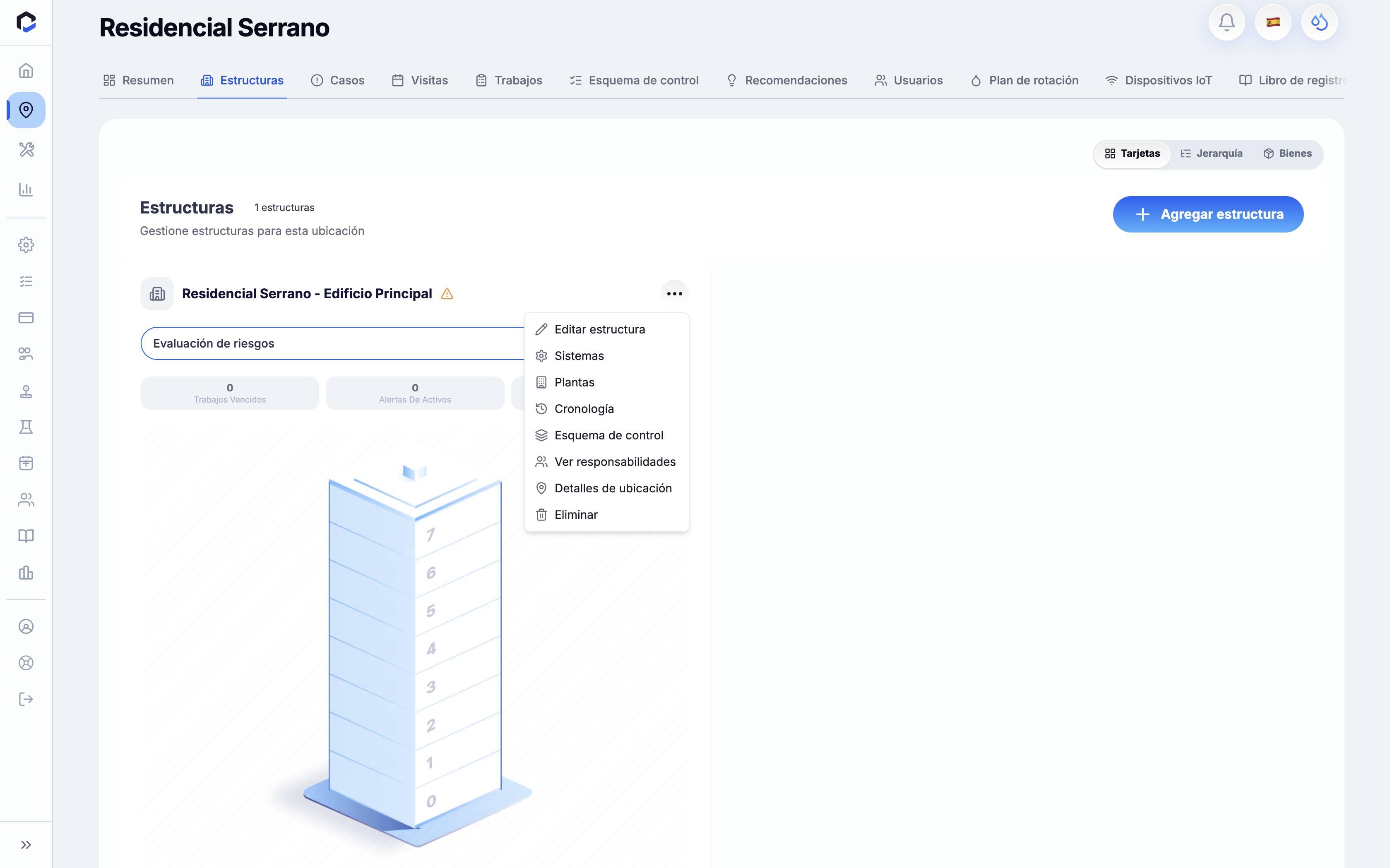
Structures screen in the Residencial Serrano location allows managing building structures, with key actions including adding a new structure and editing or viewing details of existing ones via a dropdown menu.
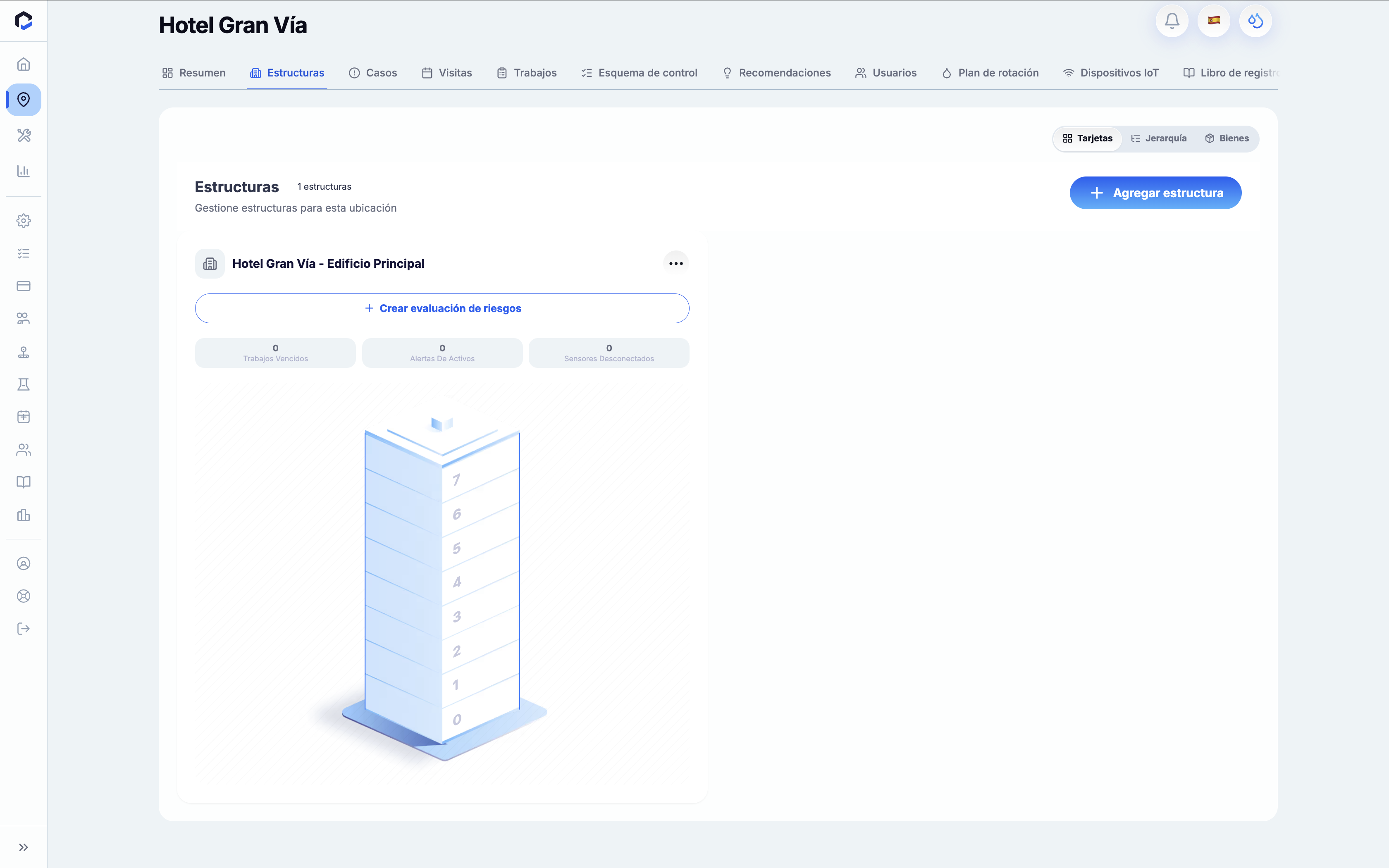
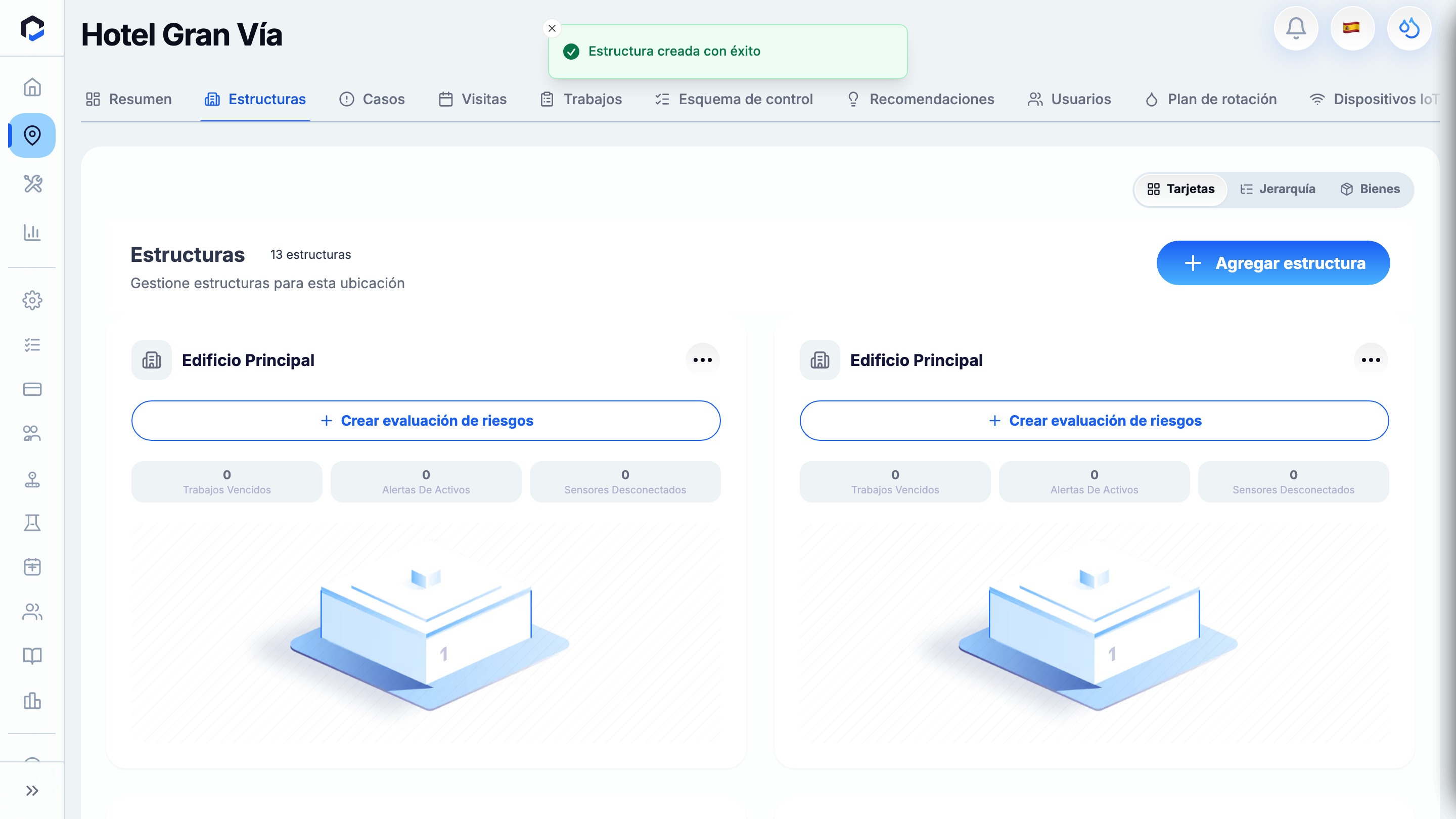
Structures screen for Hotel Gran Vía in BriqSafe web-app, displaying building details and allowing the user to add structures or create a risk assessment.

Añada una estructura para definir los componentes del edificio de una ubicación, lo que permite organizar las áreas que dependen de ella.

  1. Abra la ubicación que desea modificar.
  2. Seleccione la pestaña Estructuras dentro del panel de administración de la ubicación.
  3. Haga clic en Añadir estructura.
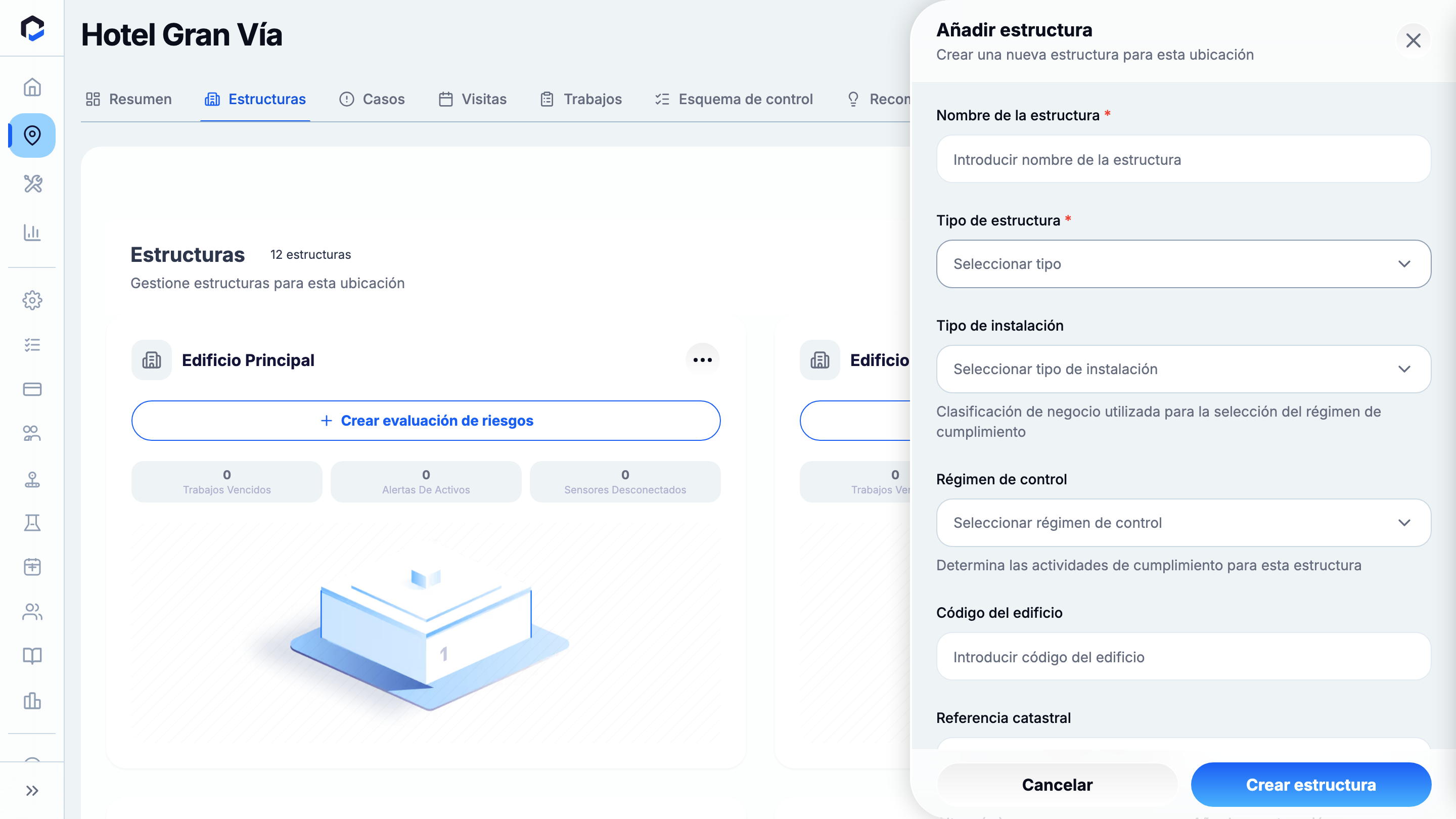
  4. Complete los siguientes campos:
  • Nombre: indique el nombre de la estructura.
  • Tipo de estructura: seleccione el tipo de edificio, como Edificio o Almacén.
  • Tipo de instalación: elija la categoría de la instalación, por ejemplo Hotel, Oficina o Escuela.
  • Opcionalmente, rellene el Código, Año de construcción y Descripción.
  1. Envíe el formulario haciendo clic en Crear estructura.

Al crearla, el sistema asigna automáticamente un régimen de control según la estructura y la jurisdicción de la ubicación. Si selecciona un régimen de control de forma manual, su elección prevalecerá sobre la asignación automática.

Vídeo explicativo — 7 artículos

1.BriqSafe home dashboard (My BriqSafe) — the landing page after signing in; the starting point for this workflow.

BriqSafe home dashboard (My BriqSafe) — the landing page after signing in; the starting point for this workflow.

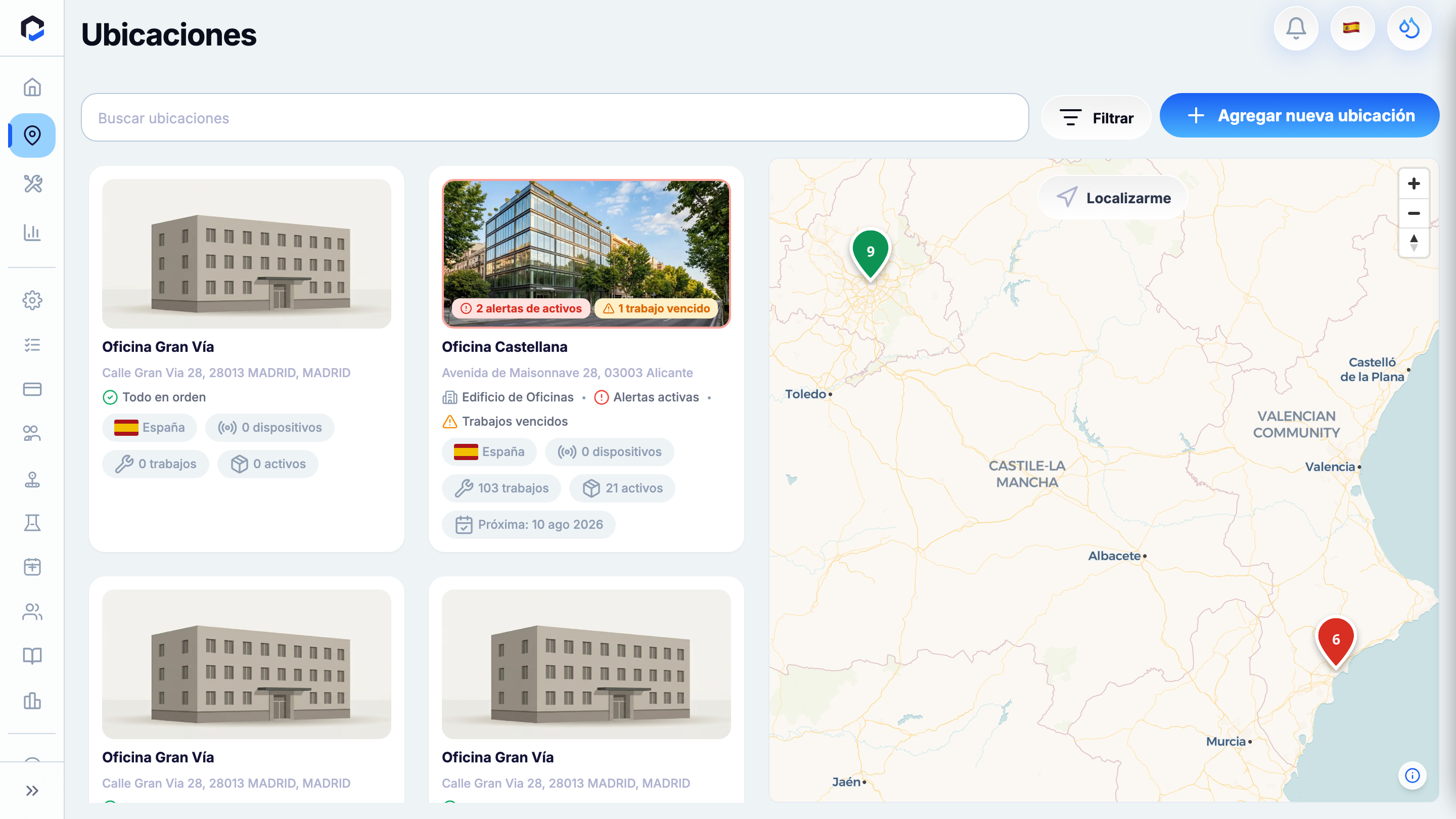
2.Locations list.

Locations list.

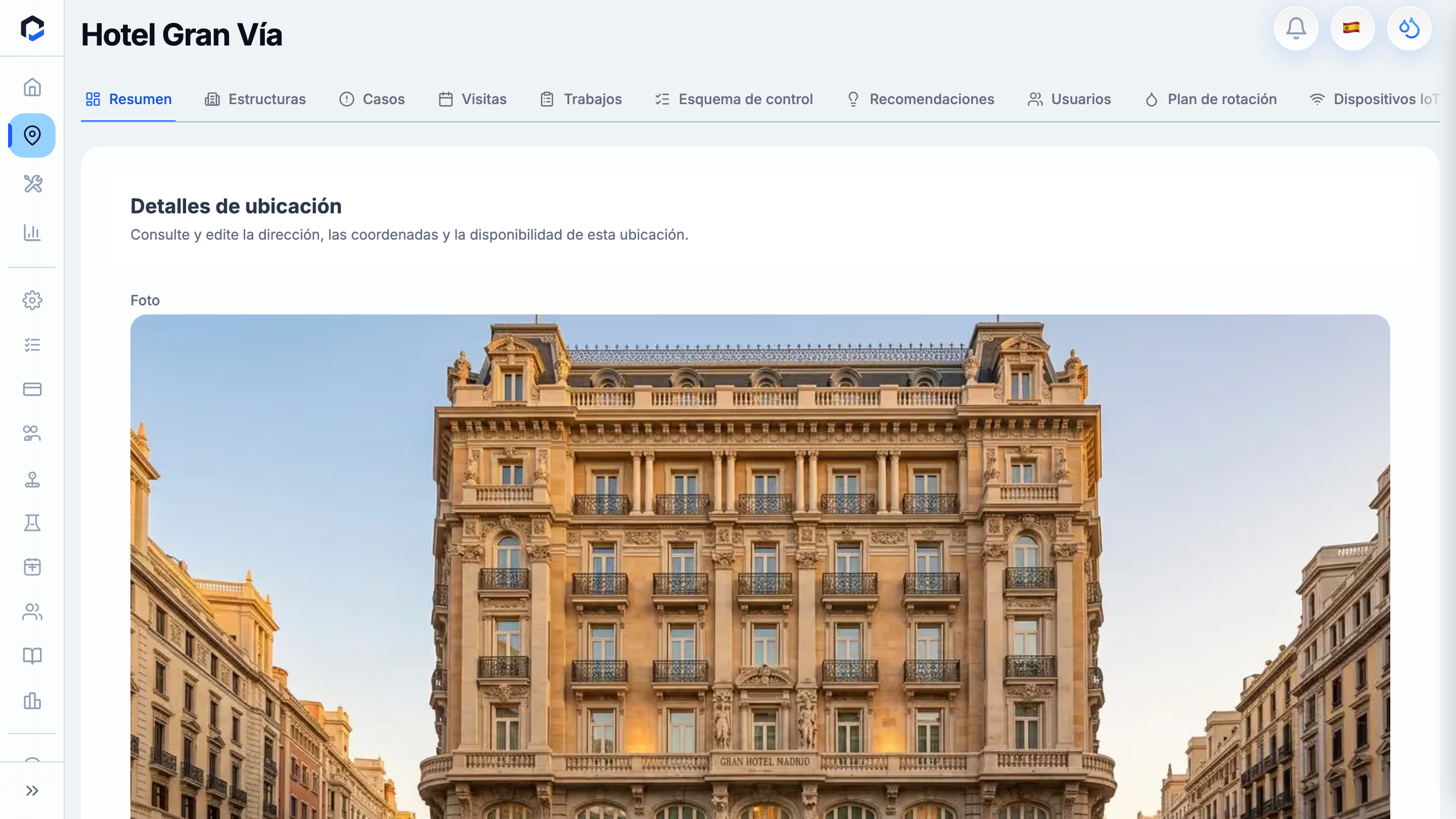
3.Selected location Overview.

Selected location Overview.

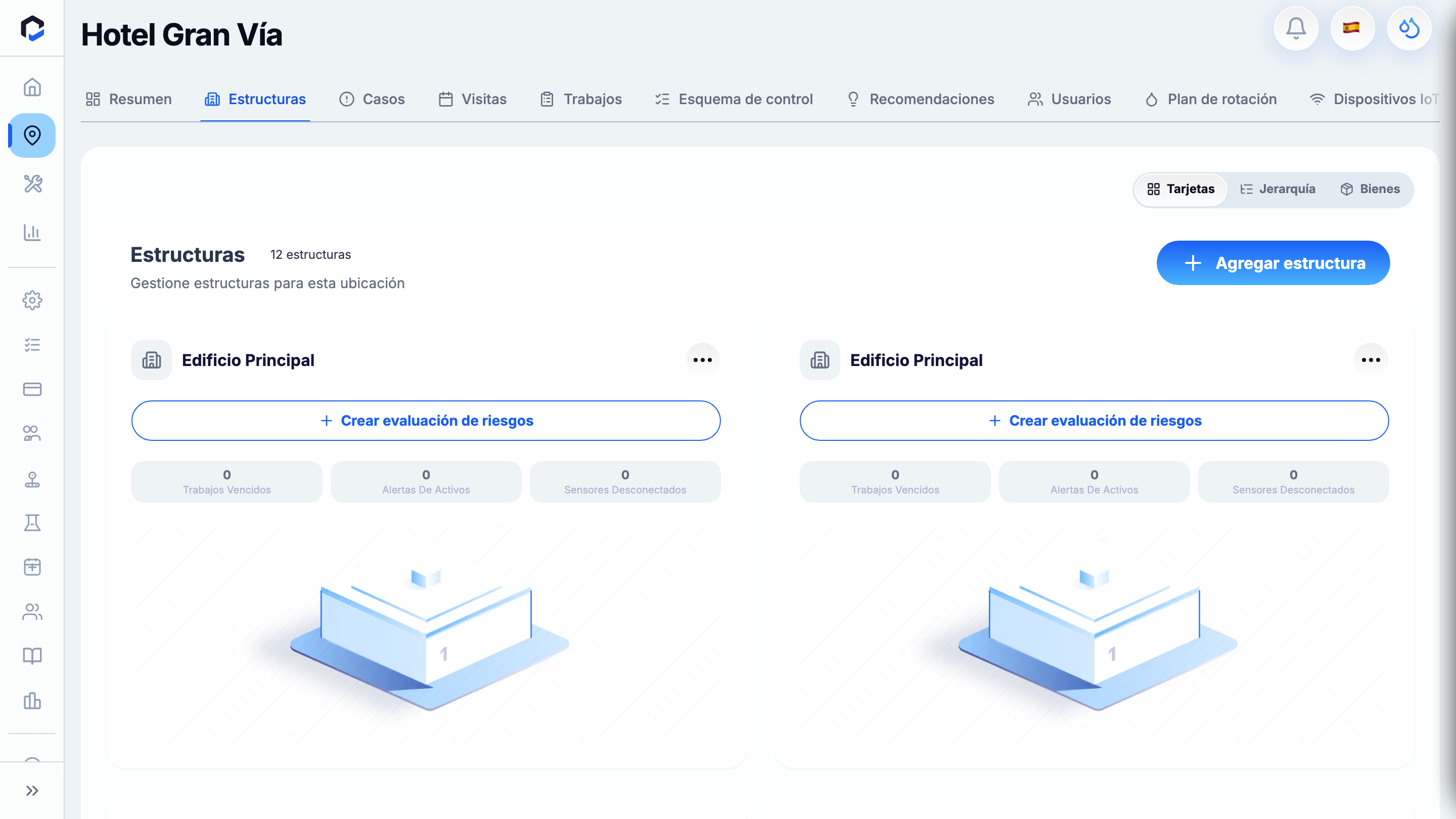
4.Structures tab with Add Structure.

Structures tab with Add Structure.

5.Add Structure form (empty): Name, Structure Type, Facility Type (+ optional Code, Year, Description).

Add Structure form (empty): Name, Structure Type, Facility Type (+ optional Code, Year, Description).

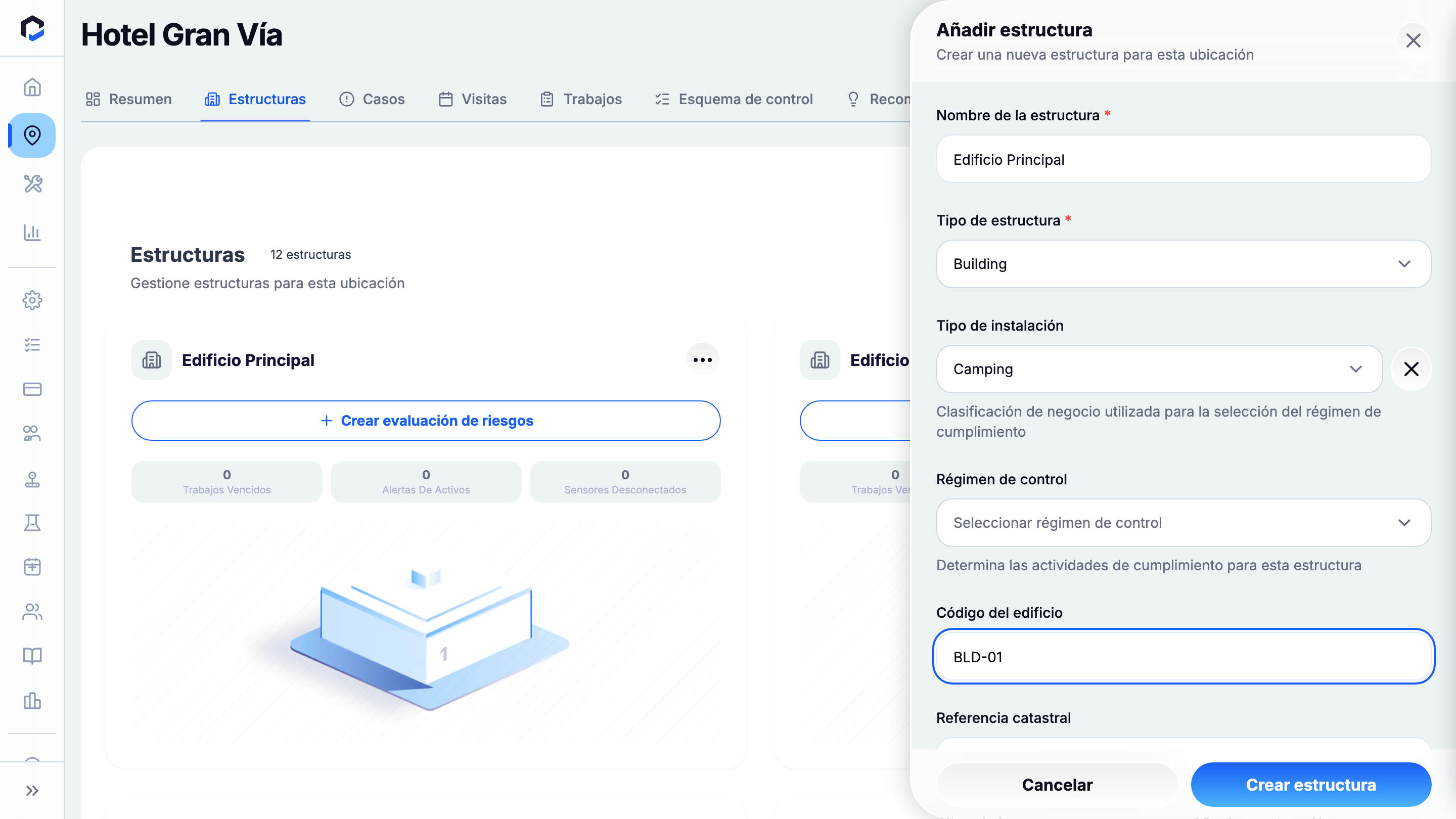
6.Add Structure with all fields filled — Name, Structure Type, Facility Type and Code (before creating).

Add Structure with all fields filled — Name, Structure Type, Facility Type and Code (before creating).

7.The new structure created and listed with its auto-assigned control regime (after saving).

The new structure created and listed with its auto-assigned control regime (after saving).